Create an online documentation site with Docly
Follow this guide to make your own guides and documentation with Docly. The documentation site can be published publicly or only for users you invite.
Updated: 21.10.2026 20:07 Sign in to Docly
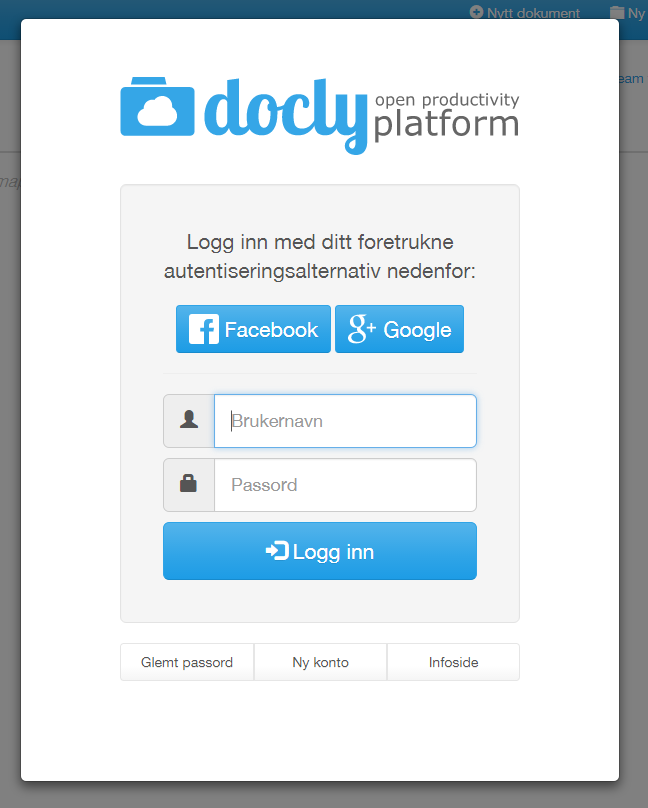
Open https://docly.net
Enter your user name and password.
If you have forgotten your password, use the "Forgot password" button.
Enter your user name and password.
If you have forgotten your password, use the "Forgot password" button.
Create a folder for the documentation
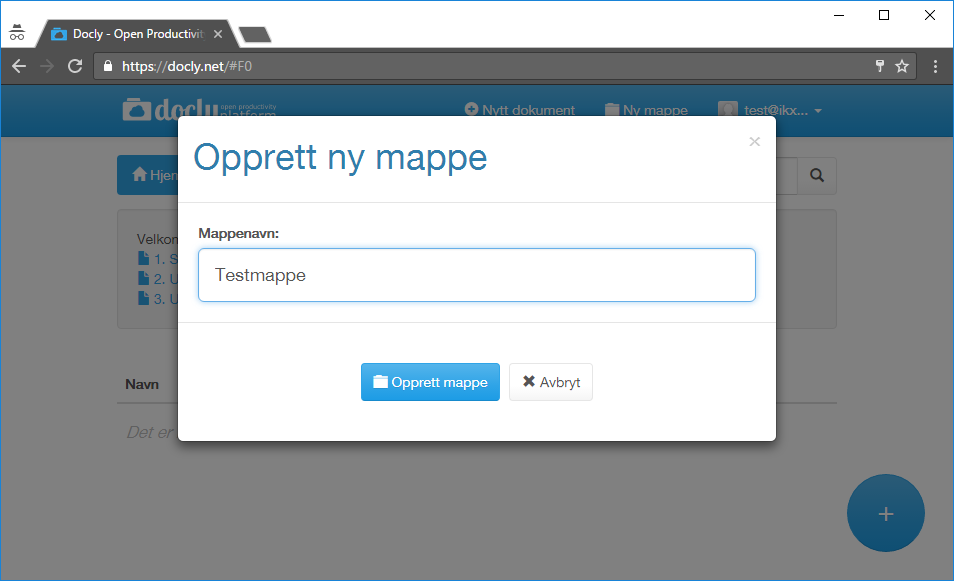
Create one folder for each documentation site you want to make. If you document several different solutions, for example, make one folder for each solution.
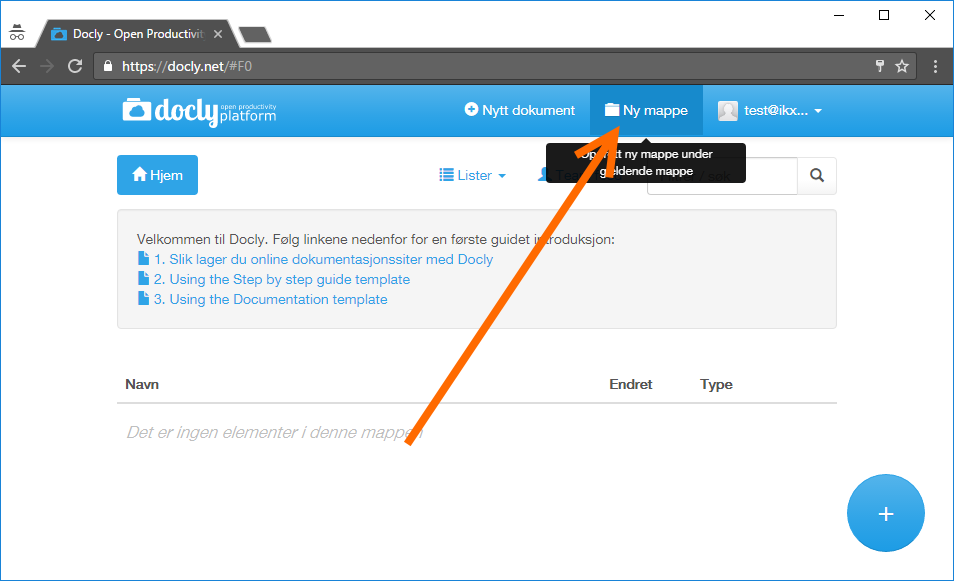
Click the "New folder" button at the top right of the top menu:
Open the folder
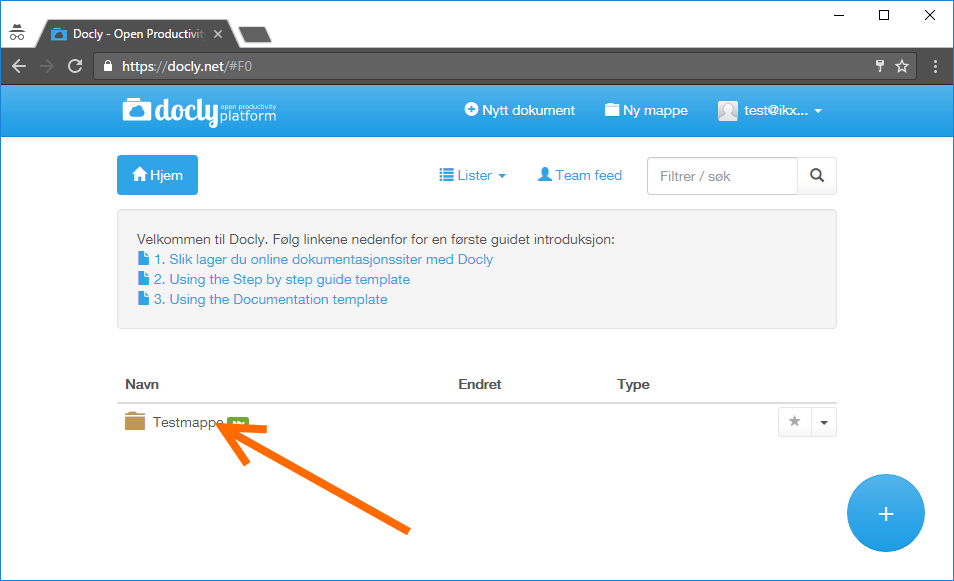
When the folder is created, click it to open it.
Publish the folder
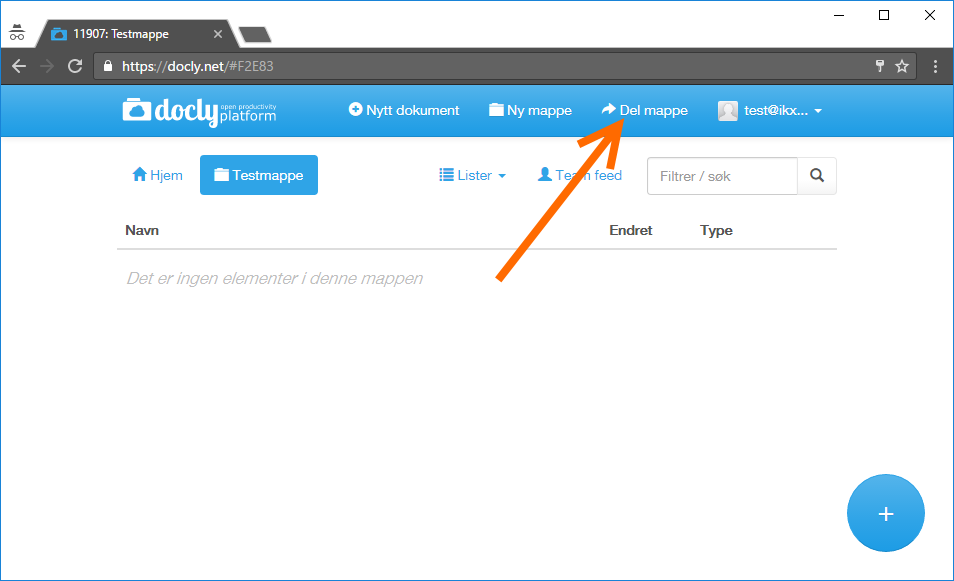
In the folder, click the "Share folder" button to open the sharing dialog.
Choose publishing, fill in the URL you want and choose the template "Documentation site".
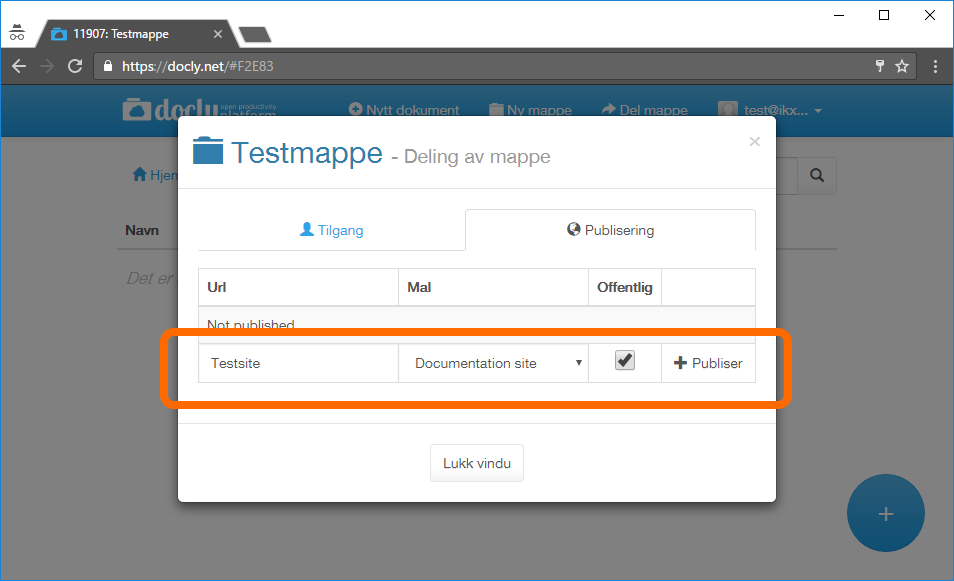
If the site should be open to everyone, tick "Public". If access should require an invitation from you (with sign-in), untick it.
Then click Publish.
Open the site
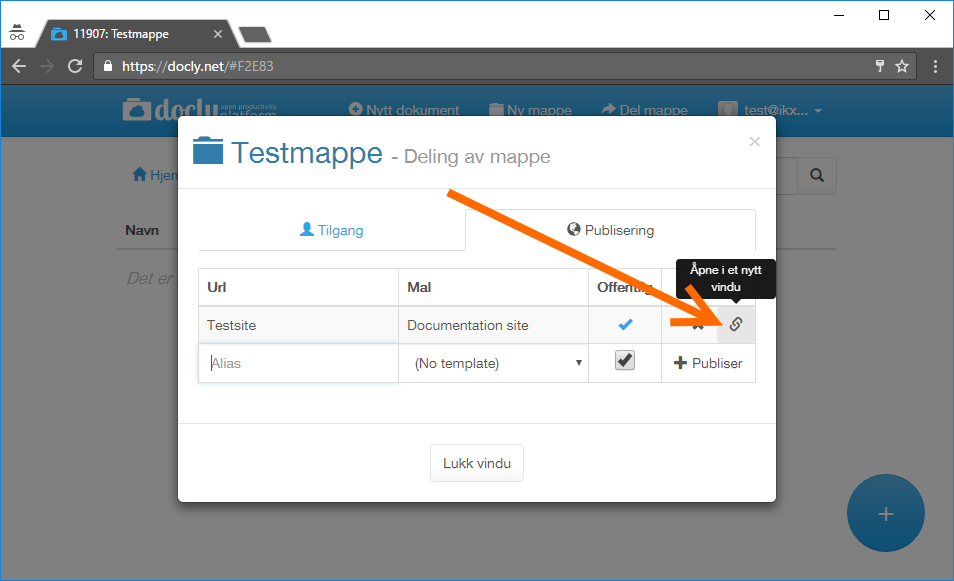
Click the link button to open the site in your browser:
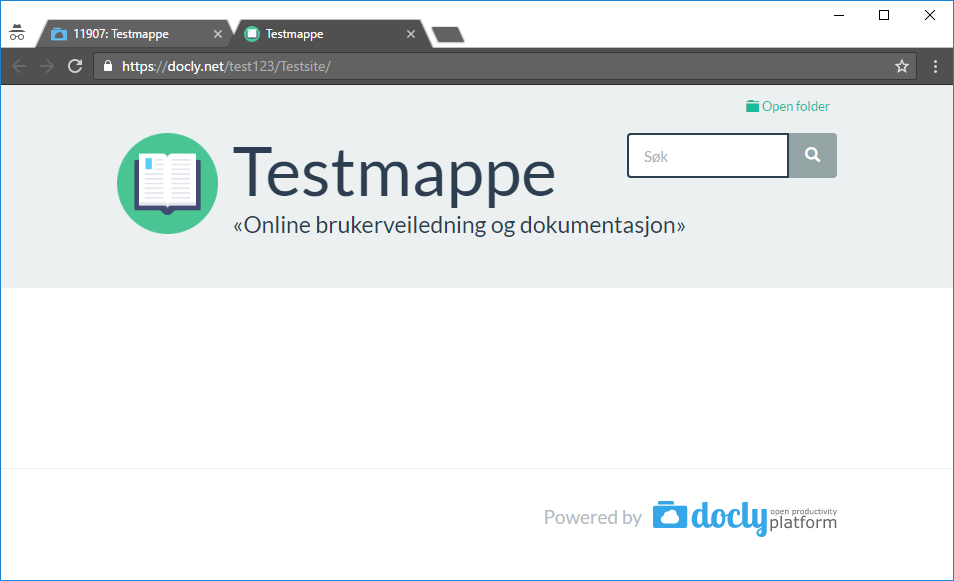
Note: your site is still empty, so you only get an empty page:
Create folders for your content
In the folder of your site, create the folders you want to organize your content in.
For example, one folder for each subject you want to document:
For example, one folder for each subject you want to document:
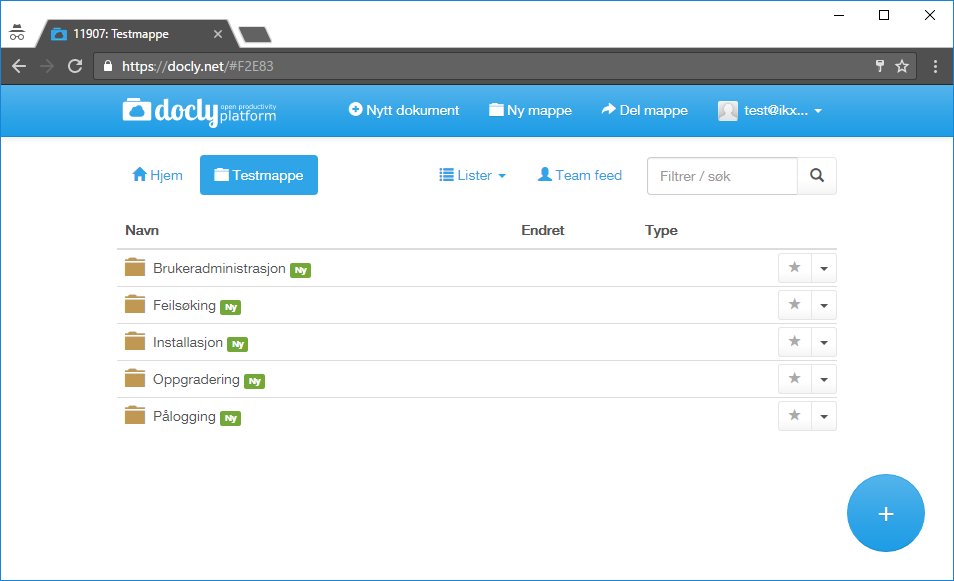
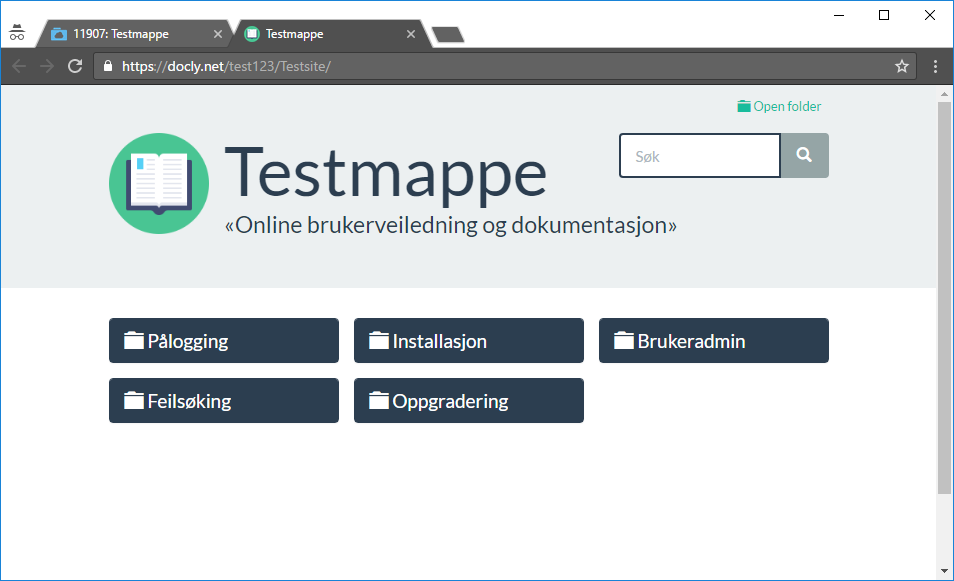
The folders are still empty in the second screenshot. The next step is to add the documents.
Create documents and upload files
Open the folder you want to add content to and click the "New document" button.
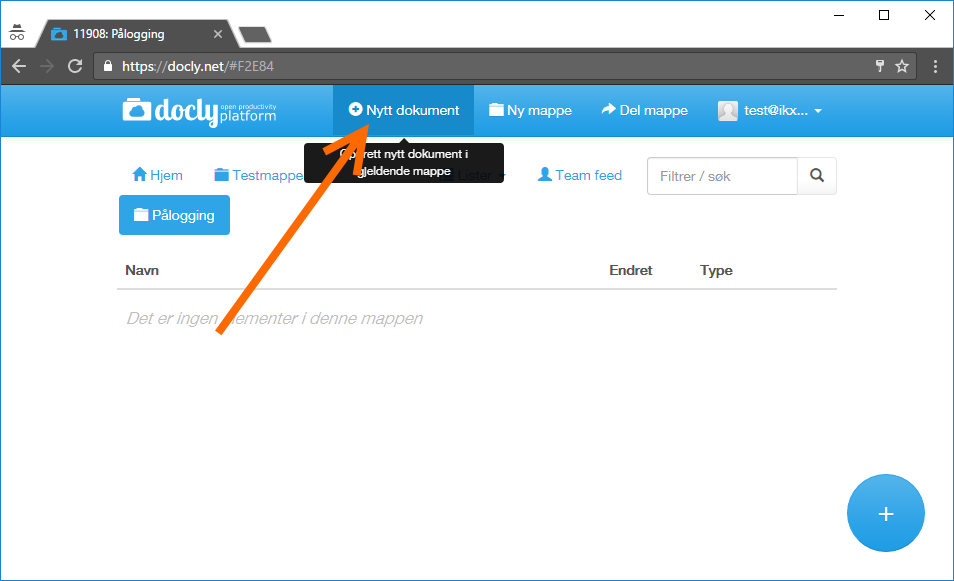
Note: you now get several choices. Choose these templates under "Productivity":
- STEP BY STEP GUIDE - for step-by-step guides that solve a specific task
- DOCUMENTATION - for articles and more general documents
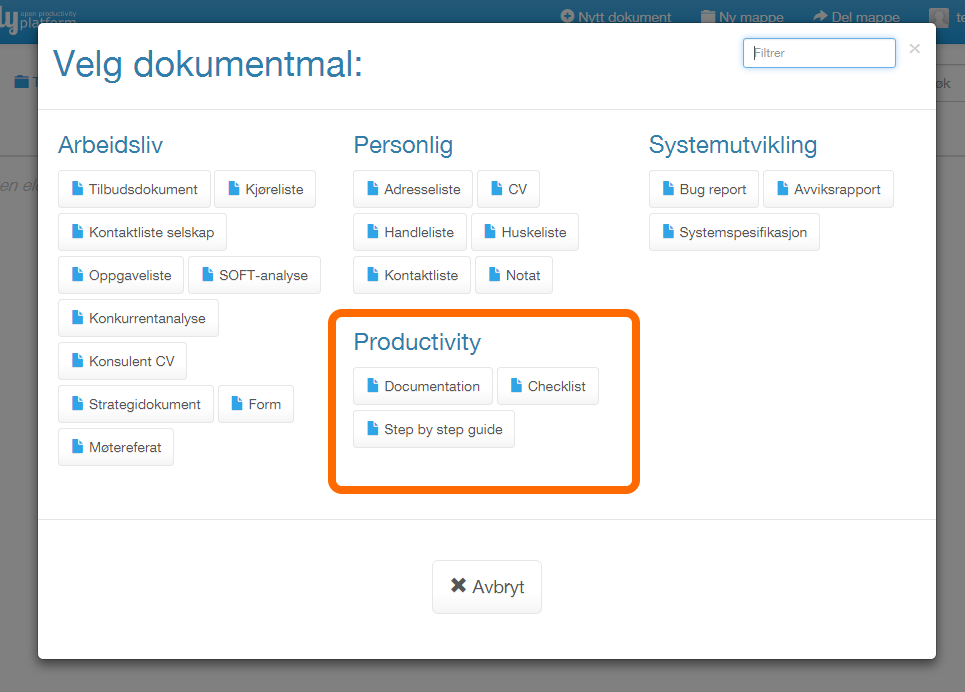
Tip: you can also upload ordinary files from your computer for download, such as PDF, Word or Excel documents. See the next step.
How to use the "Step by step guide" template:
https://help.docly.net/Templates/Using-the-Step-by-step-guide-template
How to use the "Documentation" template:
https://help.docly.net/Templates/Using-the-Documentation-template
https://help.docly.net/Templates/Using-the-Step-by-step-guide-template
How to use the "Documentation" template:
https://help.docly.net/Templates/Using-the-Documentation-template
Upload ordinary files with drag and drop
Open the folder you want to upload files to.
Select the files on your computer and drag and drop them into the folder.
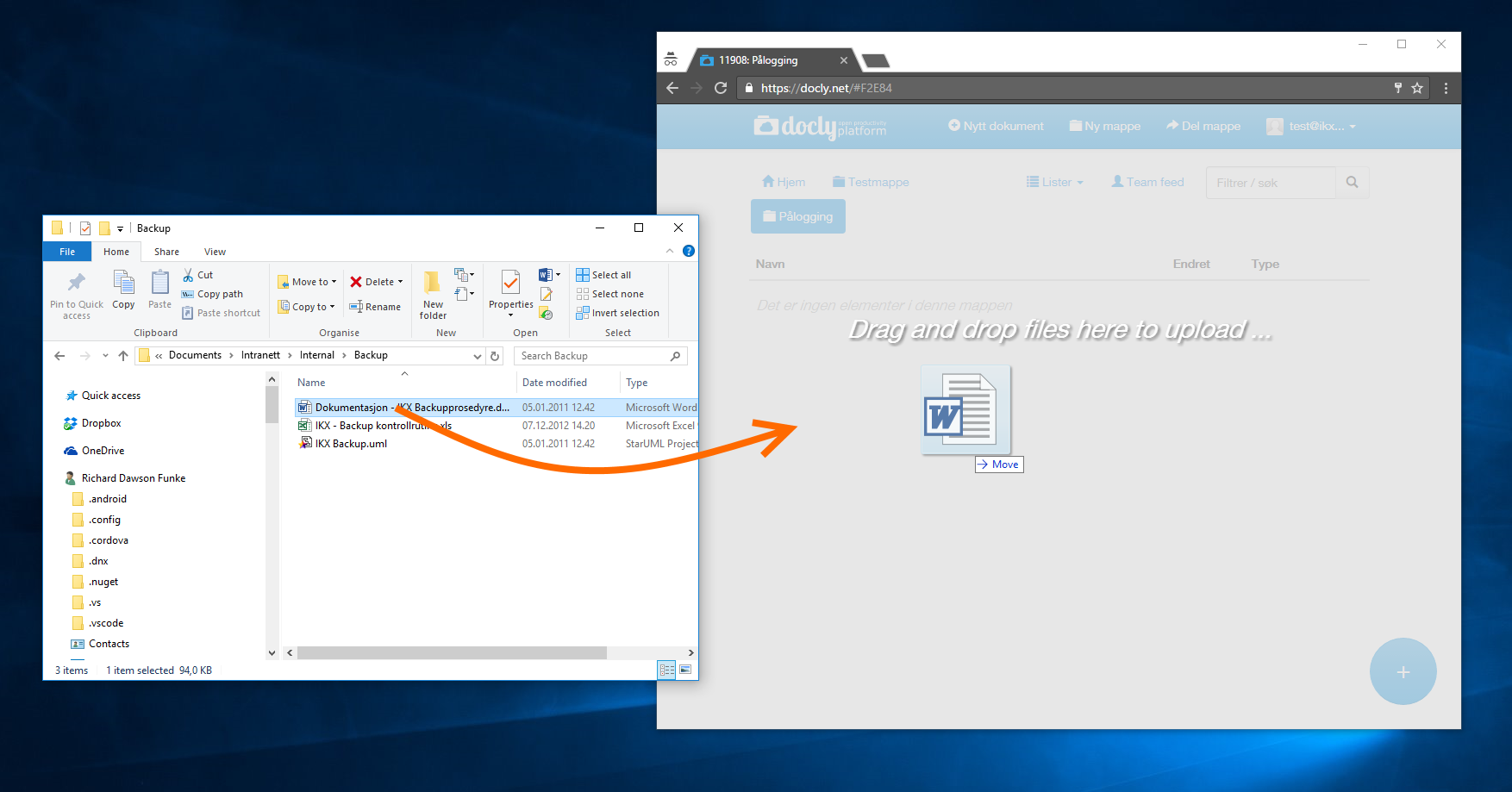
This is also an easy way to publish PDF, Excel, Word and other files on the site.
Customize the look of the documentation site
You can change the logo, the texts and the look of the site yourself.
Contact us if you need help.
Contact us if you need help.