How to enable and disable encryption
Follow these steps to enable or disable encryption in a folder.
Updated: 25.10.2026 12:13 Navigate so you can see your desired folder
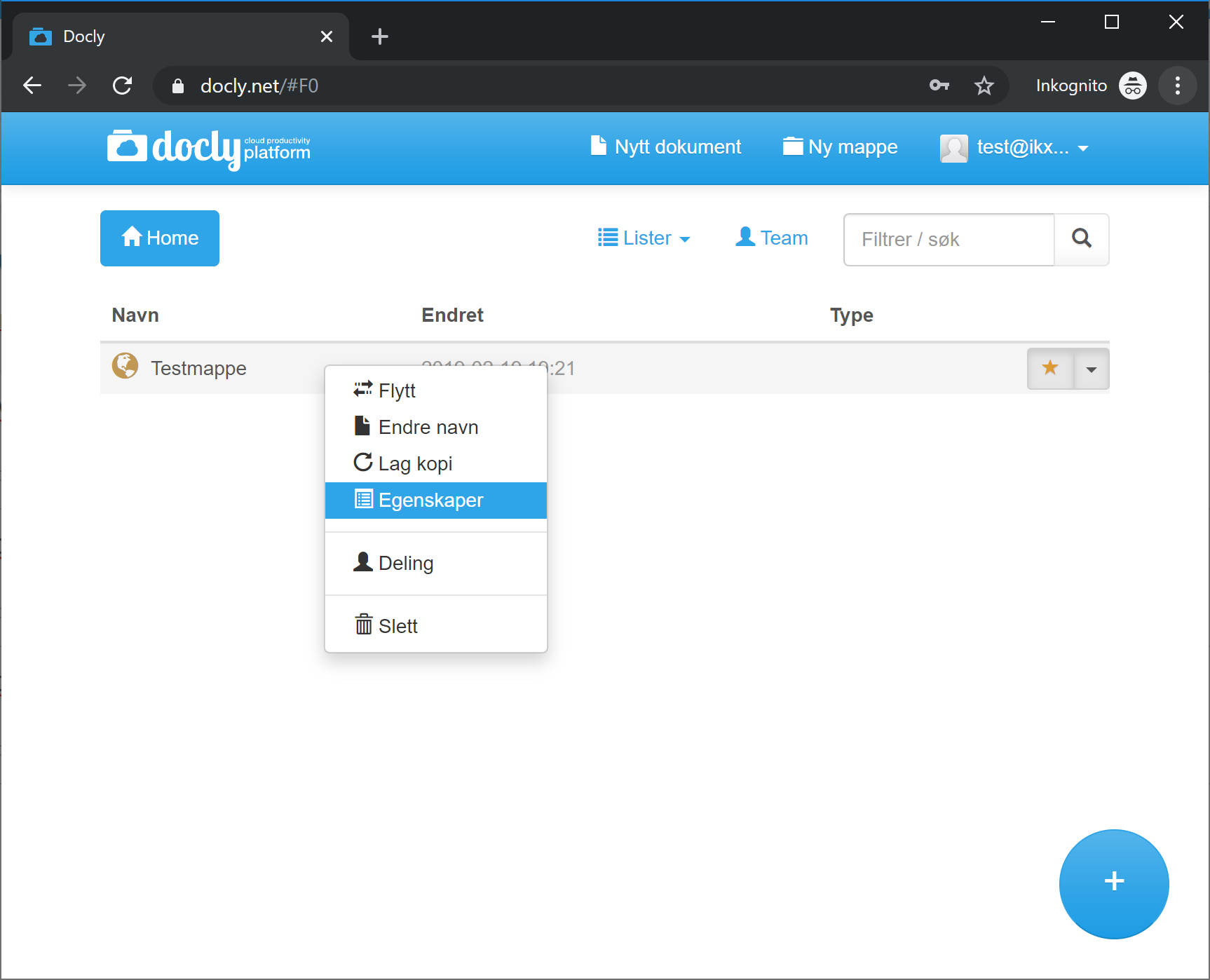
Click properties
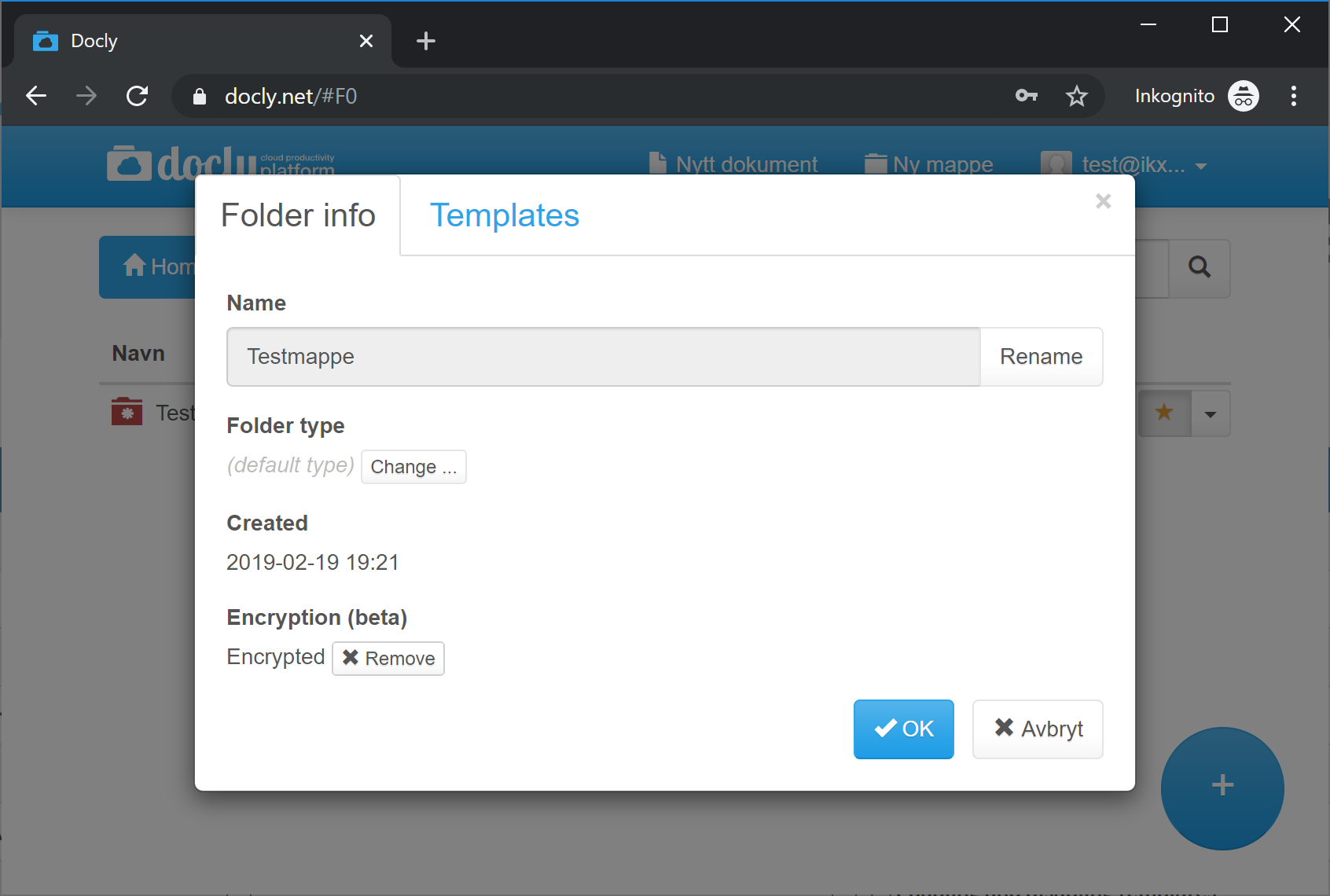
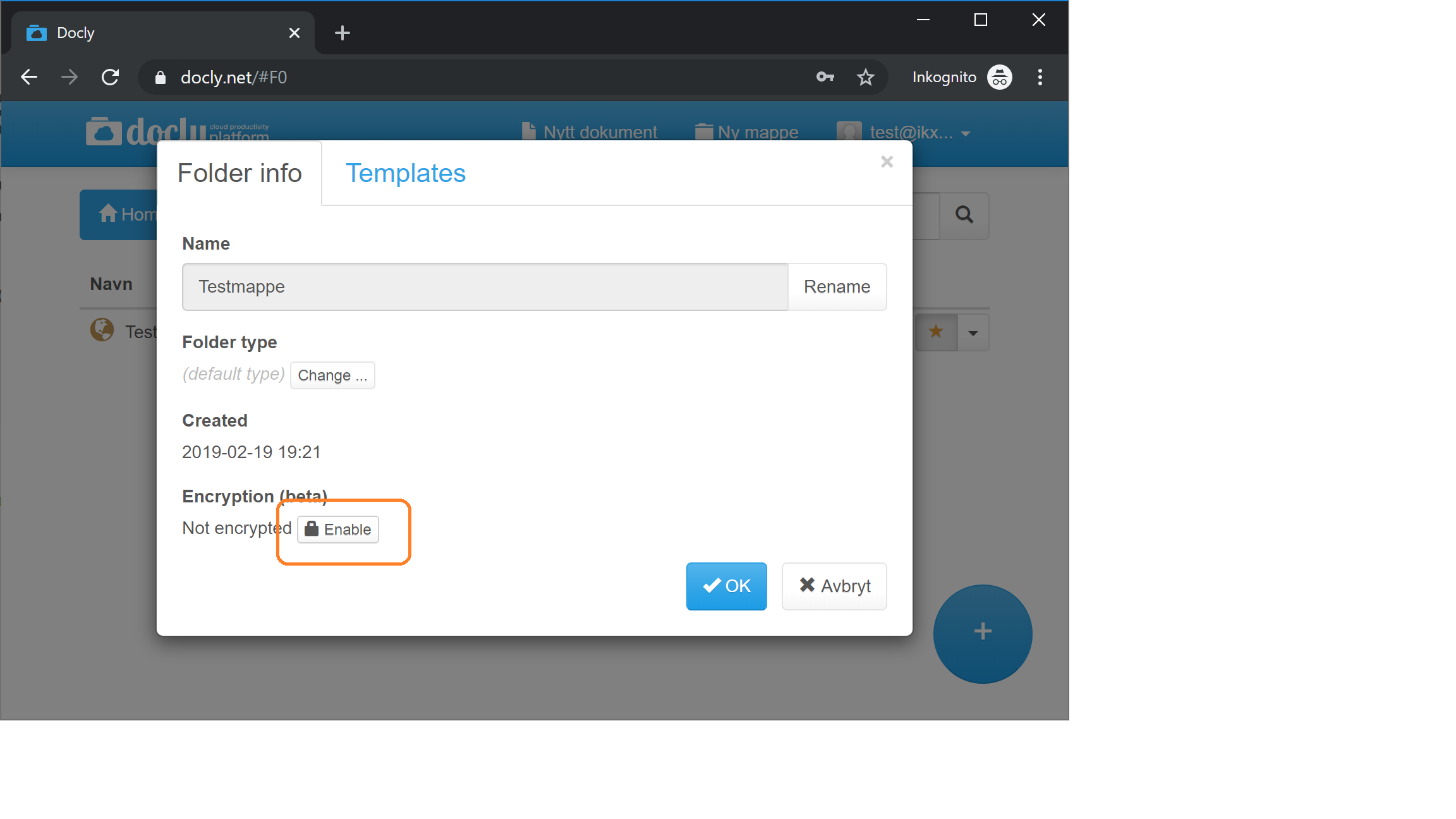
Turn on "Encryption (beta)"
On the "General" tab, turn on the "Encryption (beta)" switch. The setting is only shown if you have the developer role and admin access to the folder.
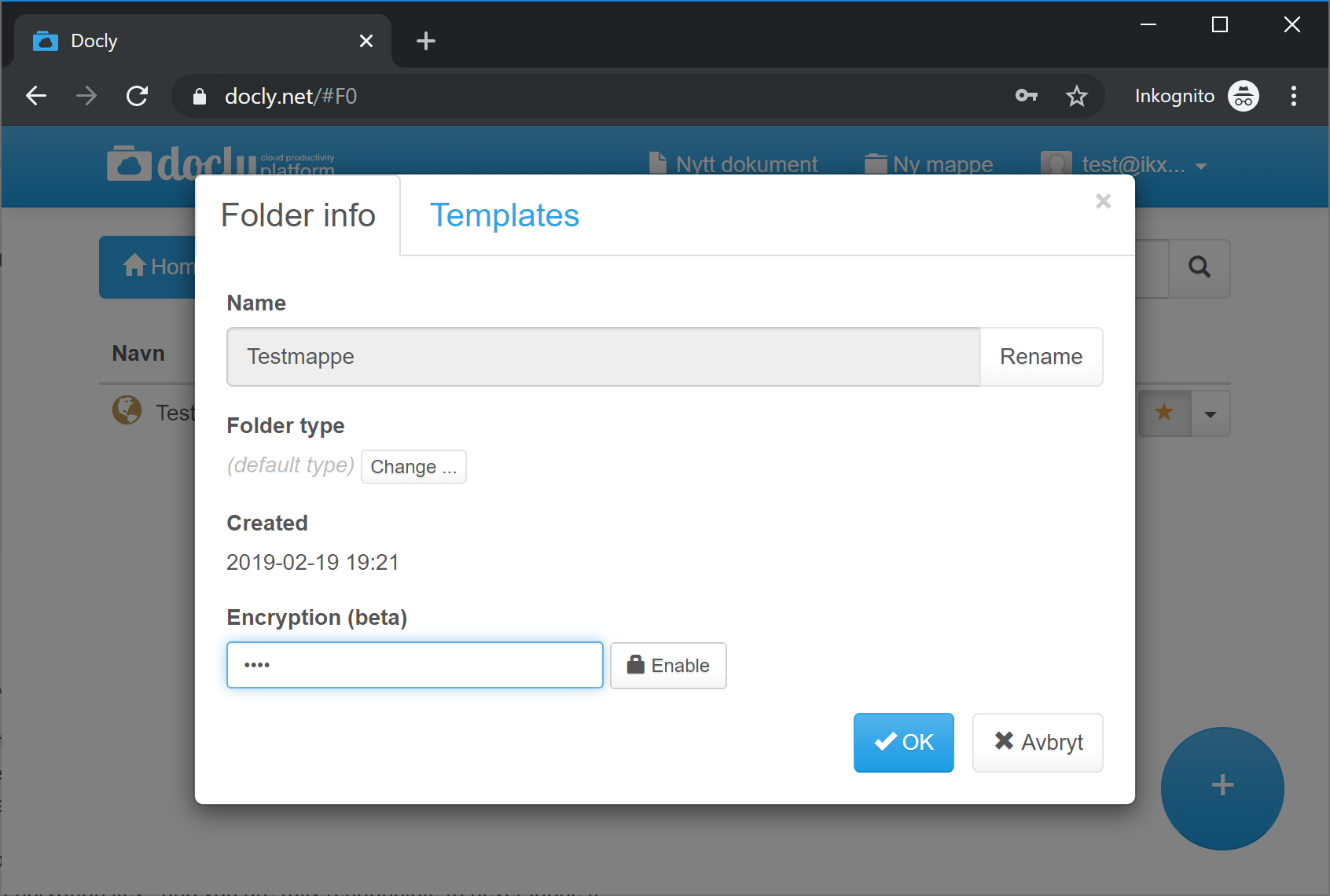
Enter a key in the field that appears, click "Enable" and confirm. (Long key = high security):
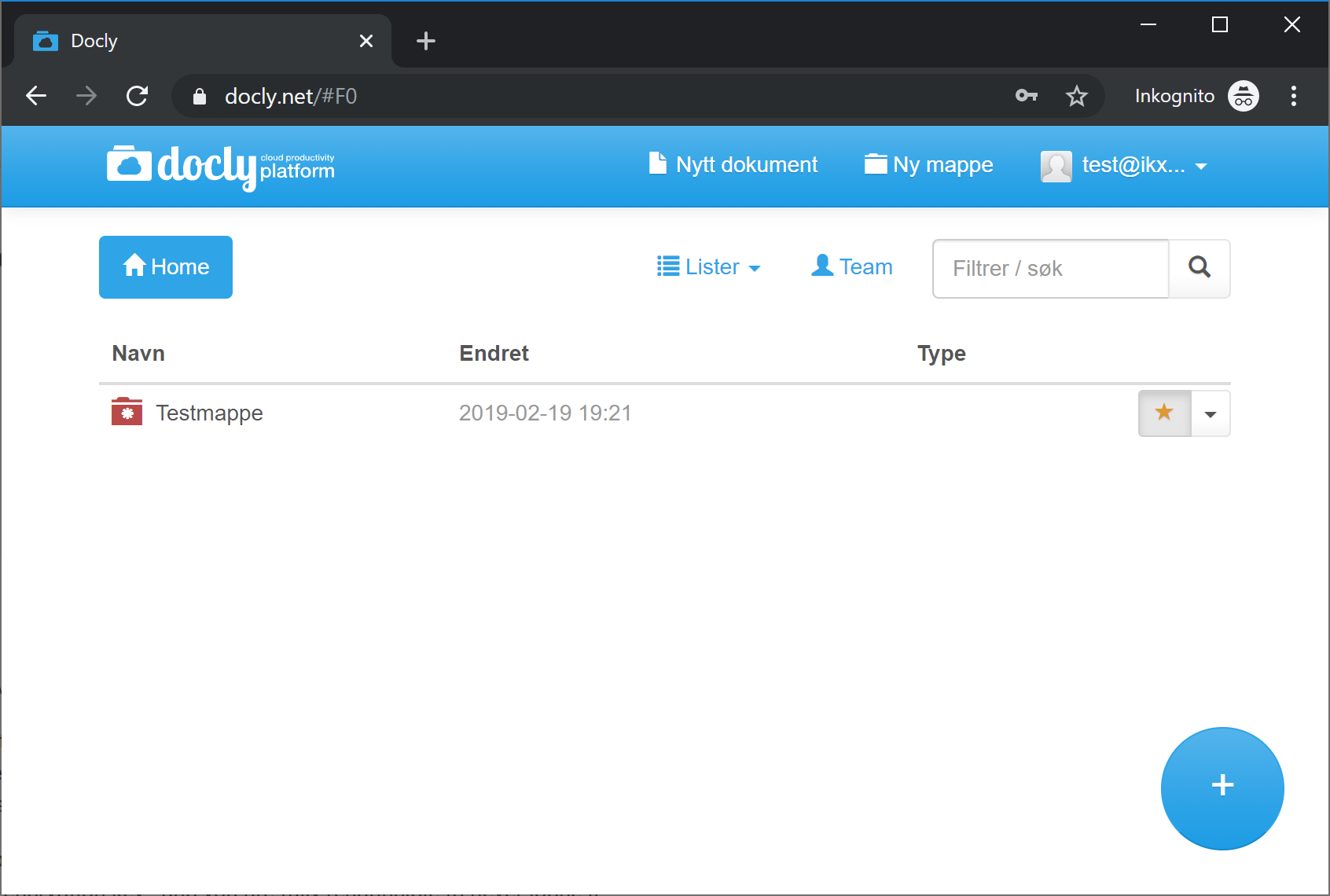
Encryption is on, folder turns red
Be careful - dont loose your password!
Docly does not save your encryption password. While the folder is locked, nobody — not us either — can decrypt the content without it.
If you loose an encryption password there is nothing we can do to help you.
We did this not only to secure your data, but also our own data.
To disable encryption - unlock the folder, do step 1 and 2, then turn off "Encryption (beta)"
The folder must be unlocked first: open it and click "This folder is encrypted. Click here to unlock it!". Then turn off the "Encryption (beta)" switch on the "General" tab and confirm to decrypt the folder.