Enable login with authenticator app
Authenticator login works with most authenticator apps such as Google or Microsoft.
It is recommended to have TOTP as a fallback if email delivery of 2FA notifications is failling.
Updated: 25.10.2026 12:13 It is recommended to have TOTP as a fallback if email delivery of 2FA notifications is failling.
Open "Security" in Cloud Portal
Click your profile button in the upper right corner of docly.net and choose "Settings ...". In the dialog that opens, click "Go to Cloud Portal". Then open "Security".
Turn on "Authenticator app"
Turn on the "Authenticator app" switch. Two-factor authentication must be turned on first. The setup page opens — click "Begin Authenticator Setup".
Scan QR code
The QR code will be shown below as shown below:
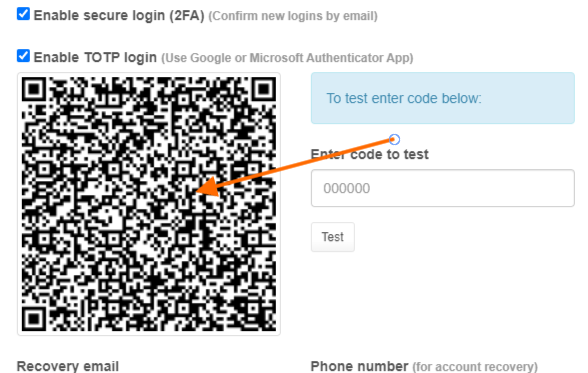
Scan the QR code in your authenticator app.
Then click "I've added it to my authenticator app".
Confirm with a code
Enter the 6-digit code from your authenticator app and click "Activate Authenticator App". The app is not active until the code is confirmed.
Logging in
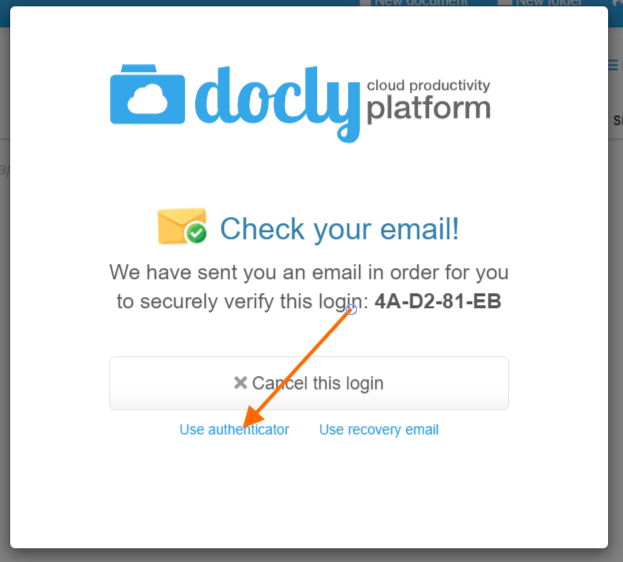
In your 2FA dialog when logging in you can now choose "Use authenticator" and the code input dialog will be shown:
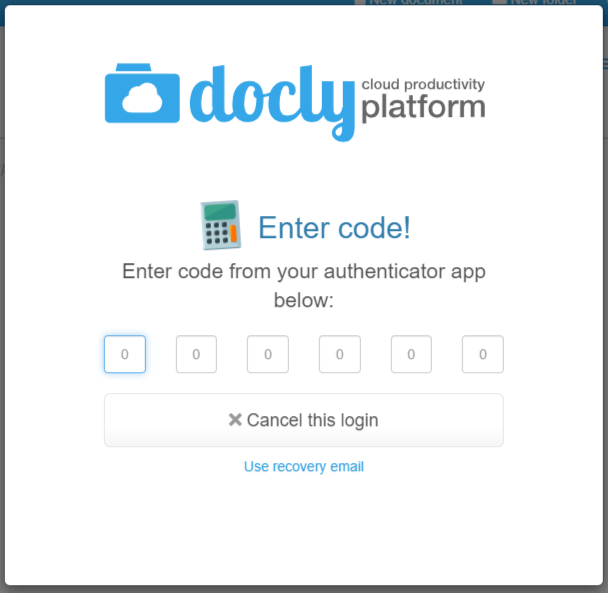
Enter the code that is shown in your authenticator app to verify and complete your login.