Sharing a folder
You can share a folder with other users in several ways. The options are:
Updated: 25.10.2026 00:22 Right click folder and click "Sharing"
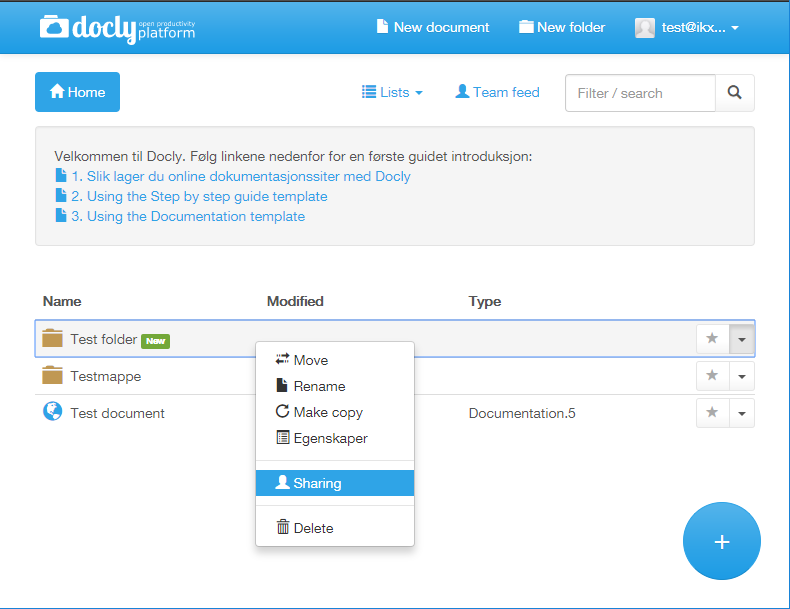
Choose desired option
| Option | Description |
|---|---|
| Publish online | Publish a folder and it's contents for others to view online (either publicly available or login). This means they can view the content you have made on an URL of your choice. |
| Read- and write permission | Give other users access to browse the folder and it's contents in Docly (web, read, write or admin). |
Publish online
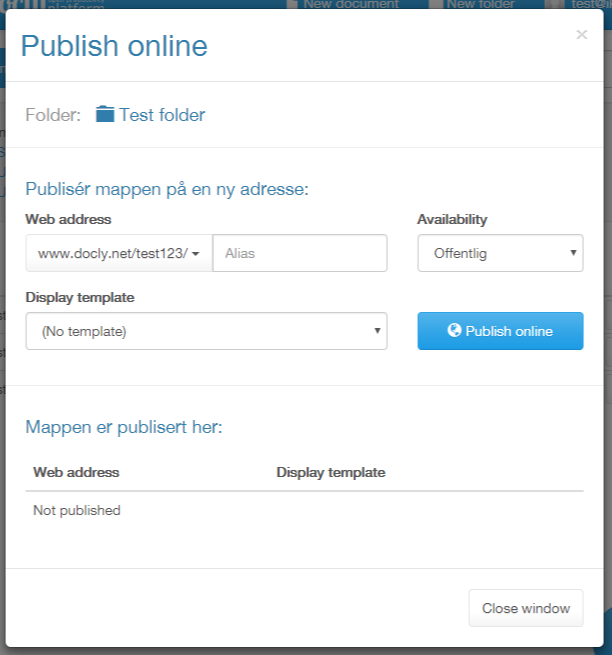
- Click "New" to publish the folder on a new address.
- Address - Choose the domain and type the path you want to make this folder available from, or tick "At the domain root".
- Use an app - Leave it off to publish the folder as it is. Turn it on to choose an app that runs the site.
- Require login - Off means the site is open to everyone. Turn it on so only users invited to the folder can open it, and give them "Web access" (see point 4).
- Click "Publish folder".
Invite users
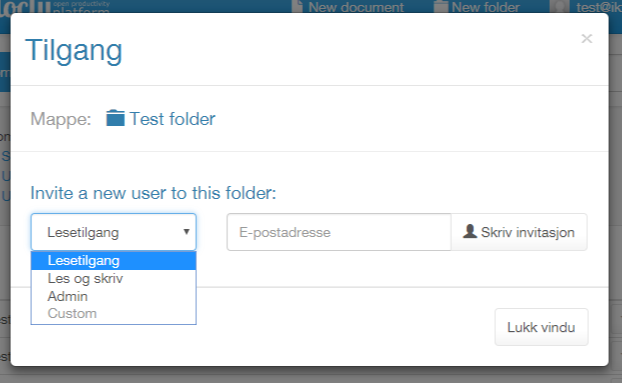
- Click "Invite"
- Enter one or more e-mail addresses under "Who" and choose the access level
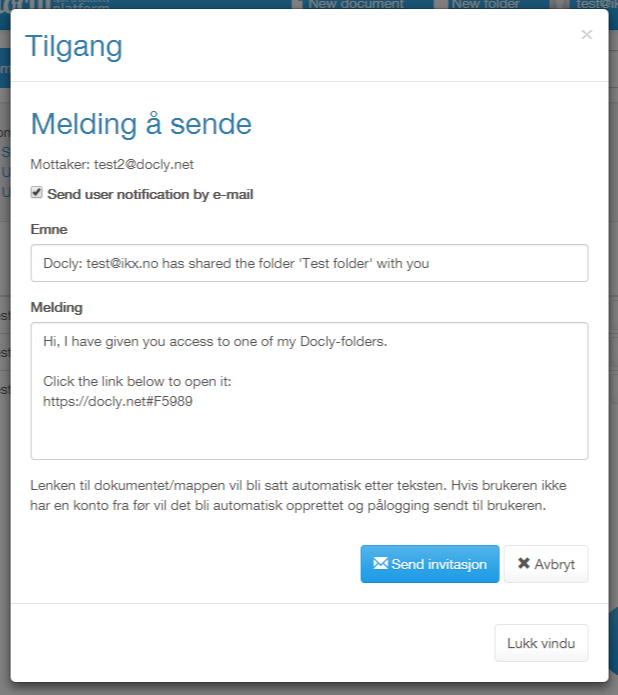
- Click "Write invitation" and add an optional message
- Click "Send invitation"
- When the person accepts, you get an e-mail. If the folder is in a workspace owned by someone else, the workspace owner is notified too. If the person declines and writes a message, only you receive it.
| Access level | Description |
|---|---|
| Web | This means they can login to the published folder. Only available for published folders. |
| Read | This means they can view the folder, open documents and it's sub folders and documents in Docly. But they can't modify anything. |
| Write | They can open, change, create and delete content in the shared folder and its subfolders. You can undelete, and you can roll back their changes on documents that keep versions (this depends on the document type and on whether your subscription includes version history). |
| Admin | Full control of the folder, including who has access. Use this only for people you trust. |
| Custom |