Create a copy of documents and folders
If you have created a document or a folder structure that you want to reuse, the copy function may save you some time.
Updated: 25.10.2026 00:22 Find the document or folder to be replicated
Navigate to, or use the "Filter / search" function to find the document or folder you want to replicate:
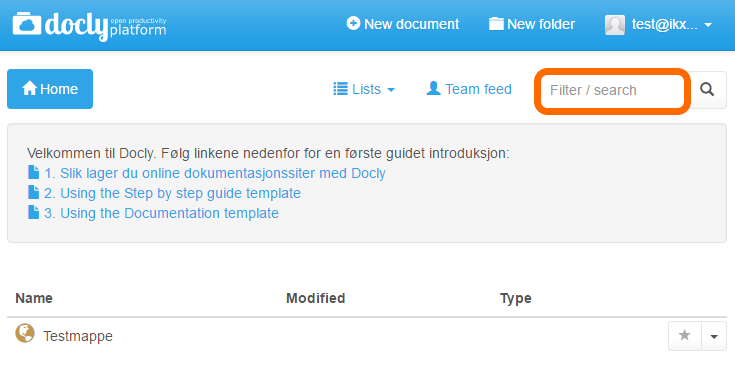
Type the file or folder name in the "Filter / search" field and press enter.
In this case we will replicate the folder "Testmappe":
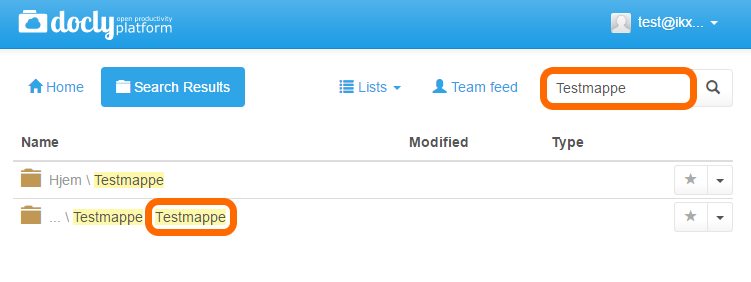
Replicate
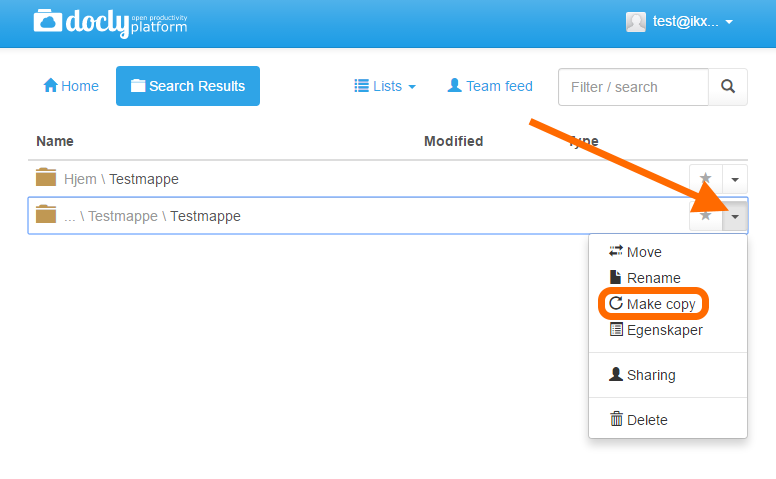
Click on the button to the far right to reveal the options for the folder, and click on "Make copy":
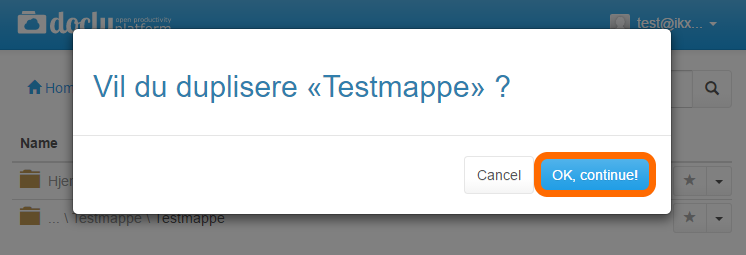
A dialogue box will appear:
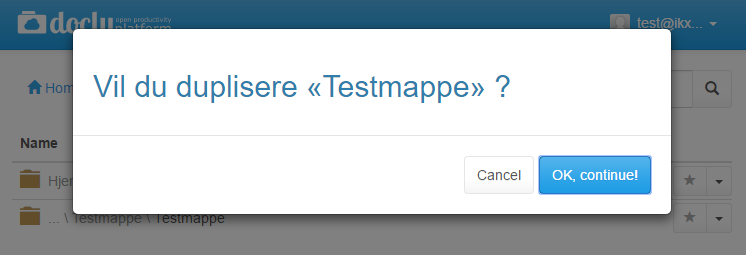
Click on "OK, continue!" or "Cancel" if you changed your mind:
The folder is copied in the background, and a "Working..." dialogue box shows the progress. You can click "Continue in background" and keep working while the copy finishes.
The copy is placed next to the original and named automatically — in this case "Testmappe copy" (or "Testmappe copy 2" if that name is taken). To give it another name, use "Rename" afterwards.
When you copy a document, a "Rename" dialogue box opens right away. Type a name for the copy and click "Rename", or click "Cancel" to keep the suggested name.