Moving documents and folders
Sometimes it is necessary to move files from one location to another.
When using the "Move" function, an already established folder and its content can be relocated in a single operation.
Updated: 25.10.2026 00:22 When using the "Move" function, an already established folder and its content can be relocated in a single operation.
Find the document or folder to be relocated
Navigate to, or use the "Filter / search" function to find the document or folder you want to relocate:
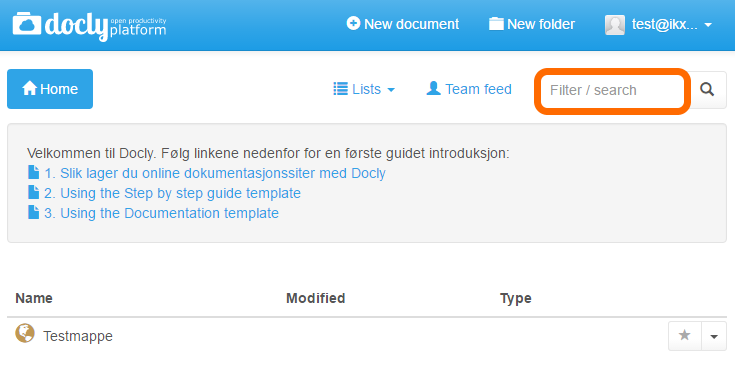
Type the file or folder name in the "Filter / search" field and press enter.
In this case we will relocate the document "Testdokument":
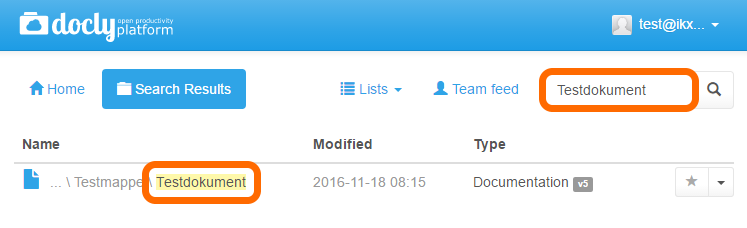
Relocate
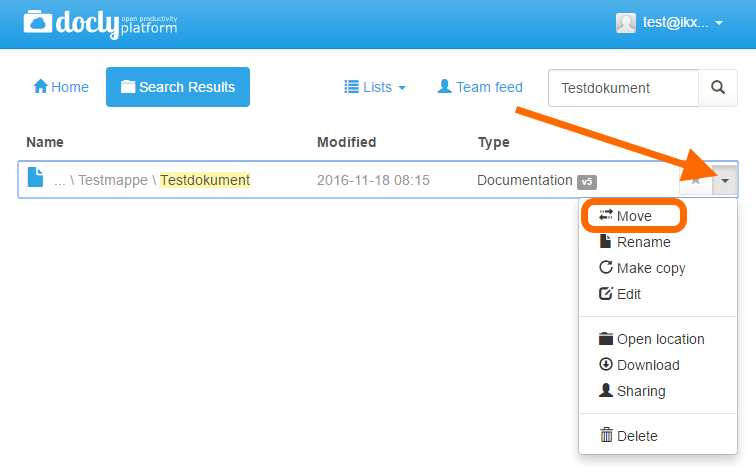
Click on the button to the far right to reveal the options for the document, and click on "Move":
A dialogue box will appear:
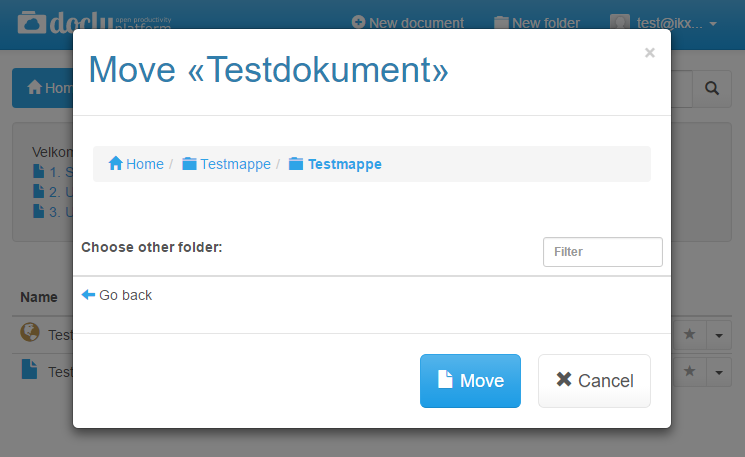
Notice the folder where your document is currently located:
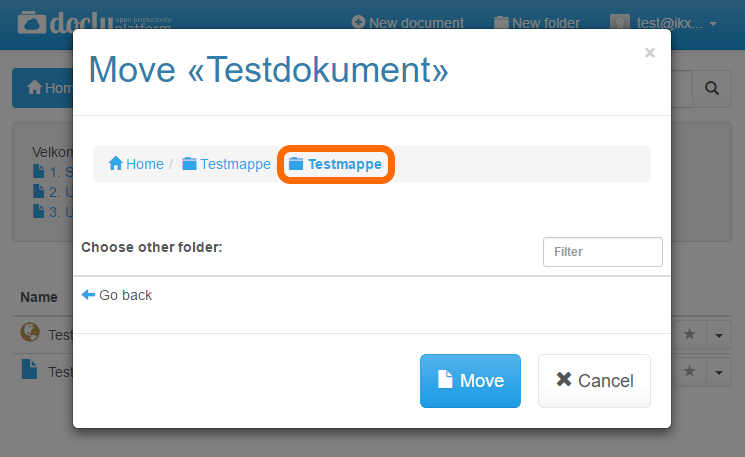
In this case we will move "Testdokument" from "Testmappe" to another folder. The target must be a folder inside a workspace — documents and folders cannot be moved to "Home".
Click on "Go back" to go up one level, or click on "Home" in the path at the top to start from your workspaces:
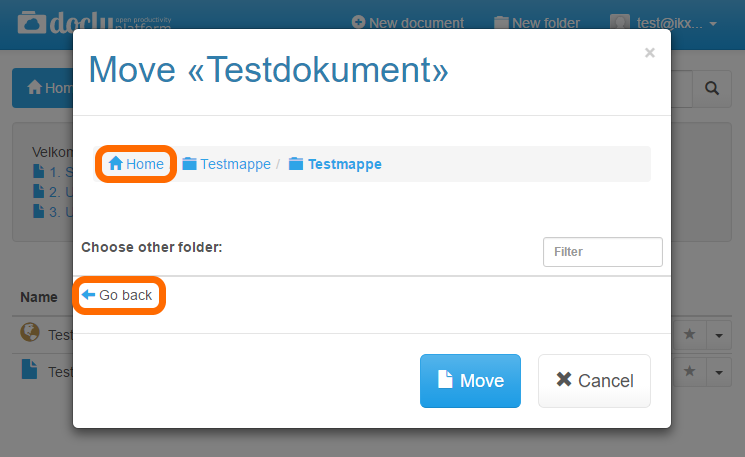
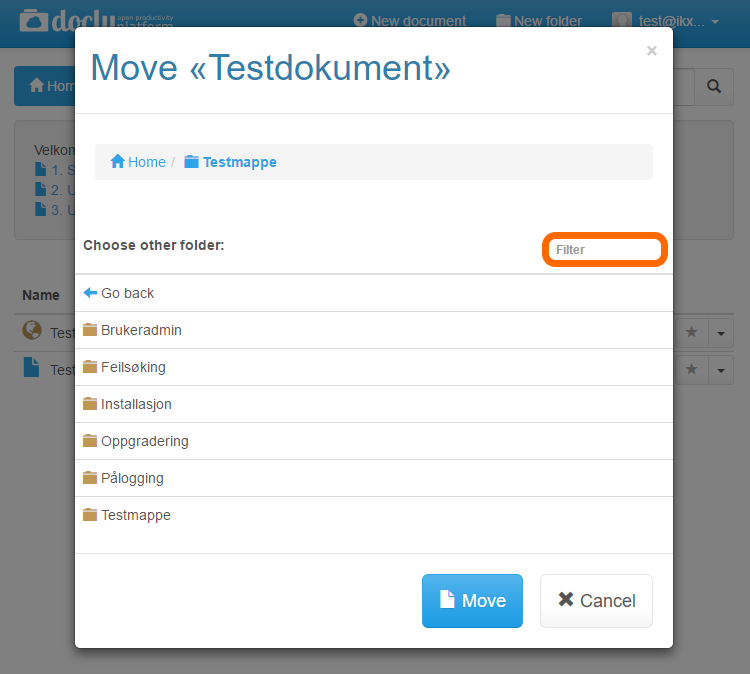
Click on the folders in the list to open the folder you want to move your document to. The folder you are in is shown in the path at the top of the dialogue box.
Tip: Use the "Filter" function to spot your target more easily if a folder contains many folders:
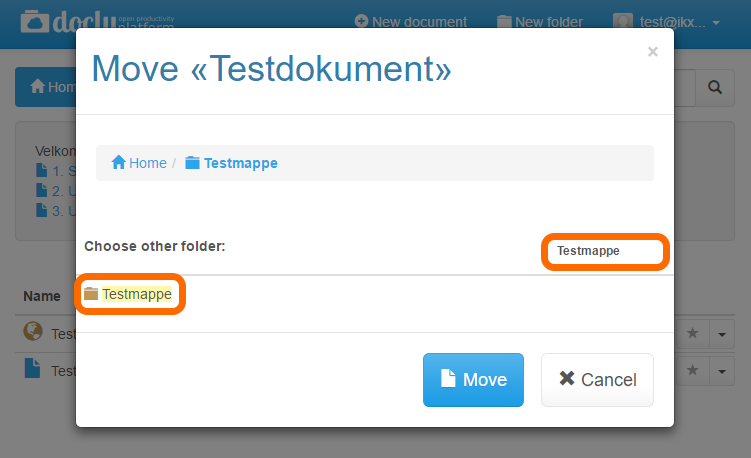
We are now ready to move the document.
Click on the button "Move".
The document is now in the folder you chose.